
Passwords are not enough. Add extra layers of security with multi-factor authentication.
Multi-factor Authentication (MFA) – also called two-factor authentication (2FA) or two-step verification – is a method of confirming a user's claimed identity in which the user is granted access to a service only after successfully presenting two or more pieces of evidence (or factors) for authentication. The factors can be:
Terminology:
| Multi-factor authentication (MFA) 2FA + other measures |
||
| Two-factor authentication (2FA) |
Other measures: more factors or |
|
| 2-step login | Passkey (single-step login) |
|
|
Username + password |
Passkey device + user verification |
|
|
TOTP or mTAN (SMS) |
||
The following two-step login methods are currently supported as second factor:
The first factor for the above methods is always username and password.
The following single-step MFA authentication methods are supported:
As backup or recovery method to reset MFA edu-ID supports:
Users enable multi-factor authentication on the edu-ID account management ("Security") on their own. Only after enabling one of the two-step login methods or passkeys, a user can log in to a service that request MFA.
If two-step login (TOTP or SMS) was enabled by a user, one first provides an e-mail address as username and in a second step the password. If the service requires MFA, the user is asked in a second step to provide a one-time code as a second factor:
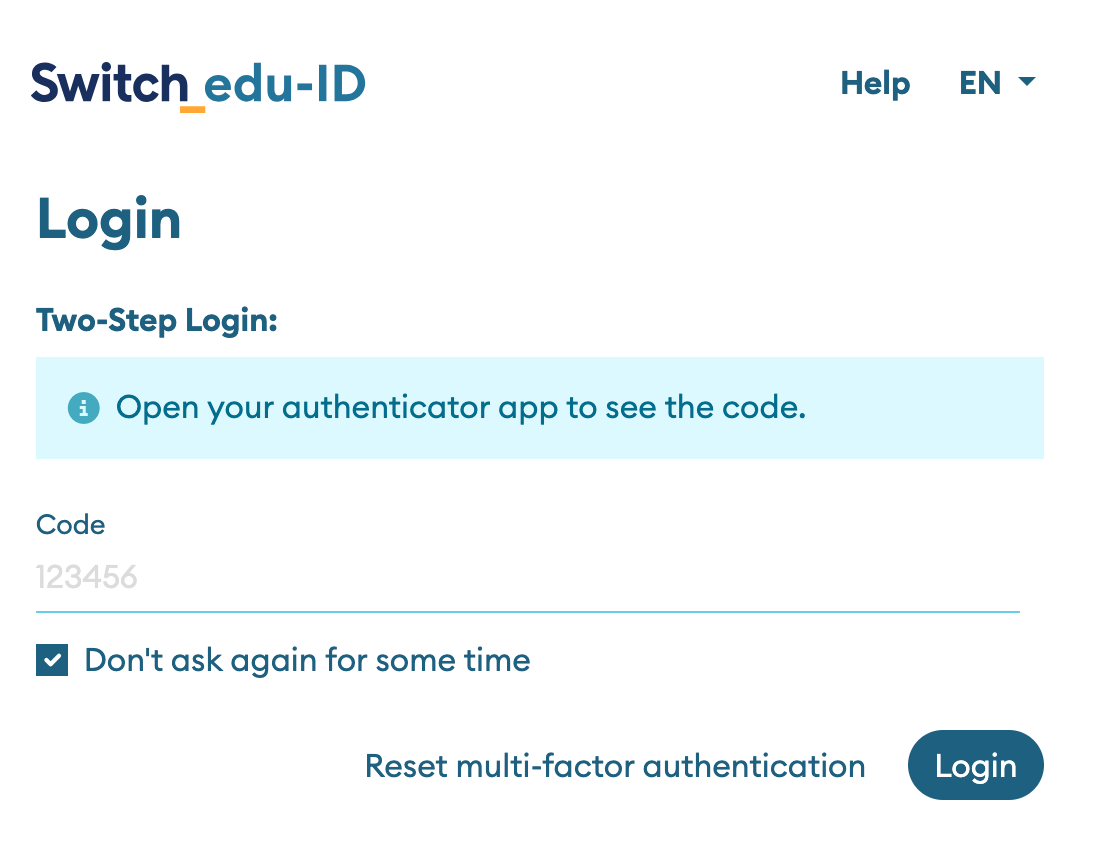
The one-time code is either sent to the user's mobile phone as an SMS text message or it is a time-based one-time password (TOTP) that is generated by an app. The app typically runs on the user's mobile phone but the TOTP code can also be generated by a password manager or another application on a computer.
When a service requests two-step login, Switch edu-ID will enforce the following: users are required to authenticate with username and password, but will then be prompted to enter an additional code (i.e. SMS or TOTP one-time token). This second step may not be required, if the two-step login was performed on the same web browser recently (default is 30 days) and if the checkbox "Don't ask again for some time" was checked.
More information for users is available on the edu-ID MFA help.
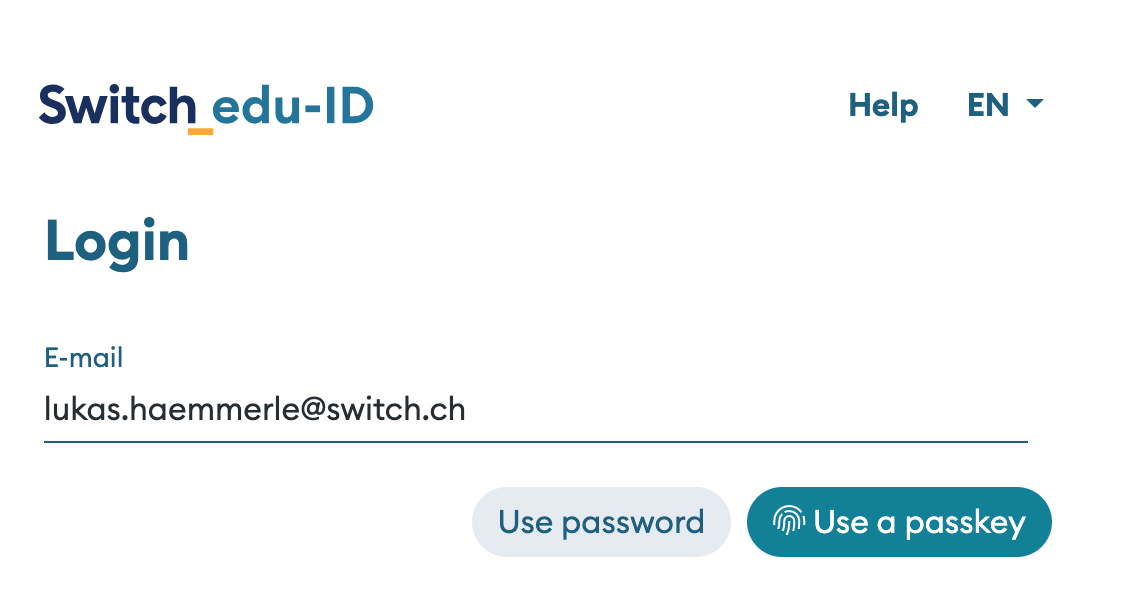
When passkeys is used as multi-factor authentication method, the login flow is slightly different. In a first step the user also provides an e-mail address as username. The user then can click on the passkey button to initiate the WebAuthN login via passkeys.
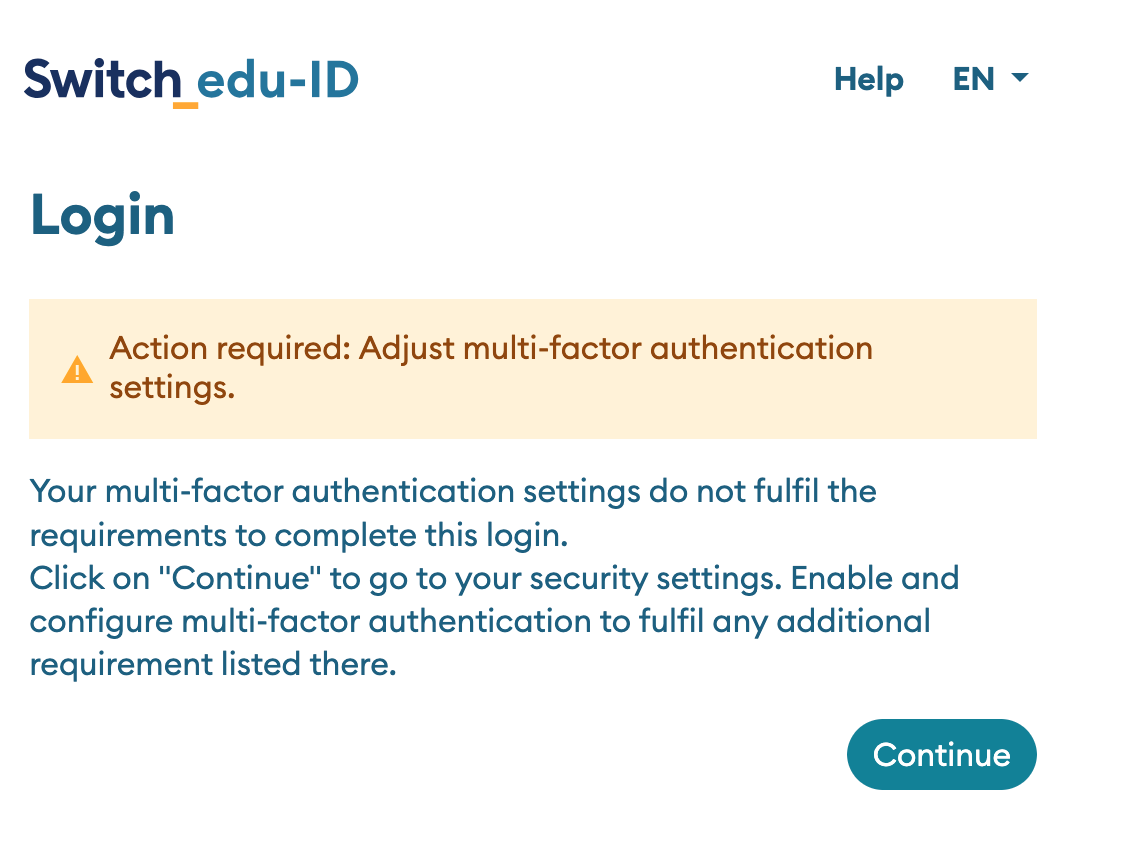
In the case user has not configured multi-factor authentication, but a service requires it, the following happens:
When will a user be required to login with a second factor?
In this case, a service enforces MFA for all users. Users who have not enabled one of the MFA methods are asked to enable an MFA method before accessing the service. Service operators are encouraged to read the chapter about configuring a service below to learn how MFA can be requested done.
Users can on the account management on their own enable MFA and decide to use it to access all services, regardless if the service requires MFA or not.
If the user is affiliated to an organisation that fully adopted edu-ID, the organisation can define authentication policies for their users. Organisations can define to enforce MFA for all services, regardless if the service requires MFA or not. Organisations can also enforce certain methods (i.e. only TOTP but not SMS) and they can define how long the effect of the "Don't ask me again" checkbox lasts.
To request MFA for users, a SAML Service Provider needs to request the SAML2 Authentication Context class https://refeds.org/profile/mfa, which is a standard profile used in academic identity federations around the world. This profile specifies the requirements that the multi-factor authentication mechanism has to meet.
In case a SAML Identity Provider does not support this profile (i.e. all organisations that have not adopted edu-ID), it will display an error message to the end-user. Users login in via Switch edu-ID will automatically asked to enable an MFA method if they have none enabled yet.
→ The configuration for MFA in SAML is documented on the MFA page for SAML.
To request MFA for users in an OIDC (OpenID Connect) Relying Party, a special paramater can be added to the authentication request.
→ The configuration for MFA in OIDC is documented on the MFA page for OpenID Connect.