
Passwords are not enough. Add extra layers of security with two-step login.
Multi-factor Authentication (MFA) - also called two-factor authentication (2FA) or two-step verification - is a method of confirming a user's claimed identity in which the user is granted access to a service only after successfully presenting two or more pieces of evidence (or factors) for authentication. The factors can be:
Terminology:
| Multi-factor authentication (MFA) 2FA + other measures |
||
| Two-factor authentication (2FA) |
Other measures: more factors or |
|
| 2-step login | Passkey (single-step login) |
|
|
Username + password |
Passkey device + user verification |
|
|
TOTP or mTAN (SMS) |
||
The following two-step login methods are currently supported as second factor:
The first factor for the above methods is always username and password.
The following single-step MFA authentication methods are supported:
As backup or recovery method to reset MFA edu-ID supports:
Users enable multi-factor authentication on the edu-ID account management ("Security") on their own. Only after enabling one of the two-step login methods or passkeys, a user can log in to a service that request MFA.
If two-step login (TOTP or SMS) was enabled by a user, one first provides an e-mail address as username and in a second step the password. If the service requires MFA, the user is asked in a second step to provide a one-time code as a second factor:
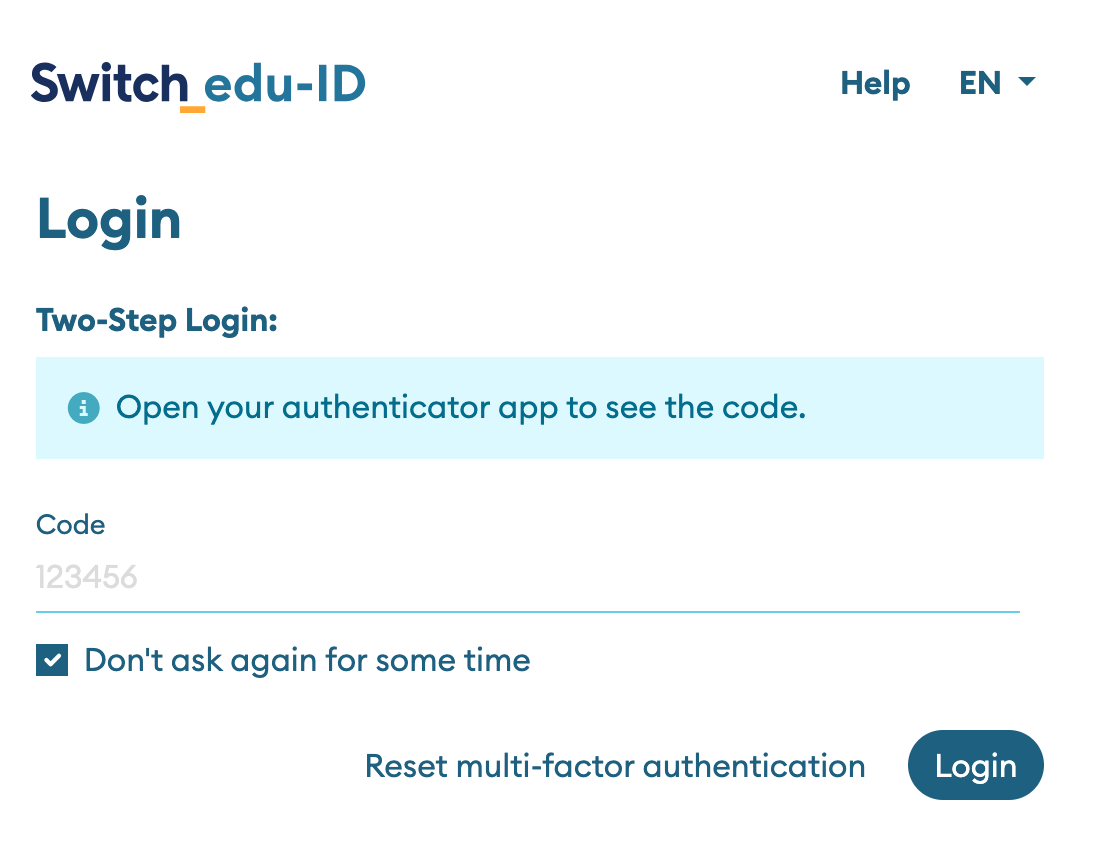
The one-time code is either sent to the user's mobile phone as an SMS text message or it is a time-based one-time password (TOTP) that is generated by an app. The app typically runs on the user's mobile phone but the TOTP code can also be generated by a password manager or another application on a computer.
When a service requests two-step login, Switch edu-ID will enforce the following: users are required to authenticate with username and password, but will then be prompted to enter an additional code (i.e. SMS or TOTP one-time token). This second step may not be required, if the two-step login was performed on the same web browser recently (default is 30 days) and if the checkbox "Don't ask again for some time" was checked.
More information for users is available on the edu-ID MFA FAQ.
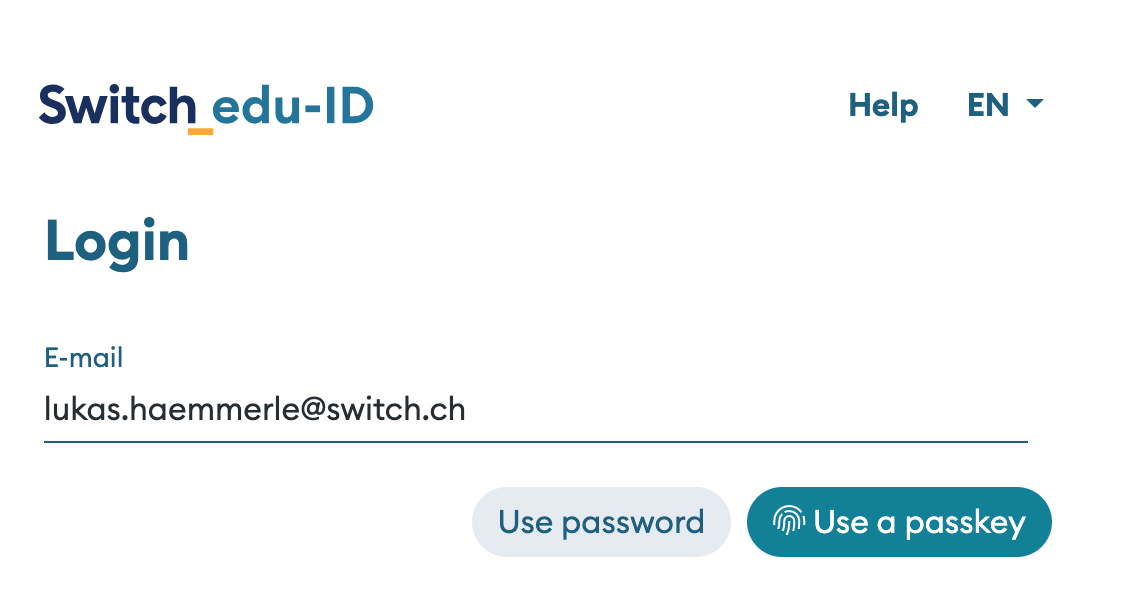
When passkeys is used as multi-factor authentication method, the login flow is slightly different. In a first step the user also provides an e-mail address as username. The user then can click on the passkey button to initiate the WebAuthN login via passkeys.
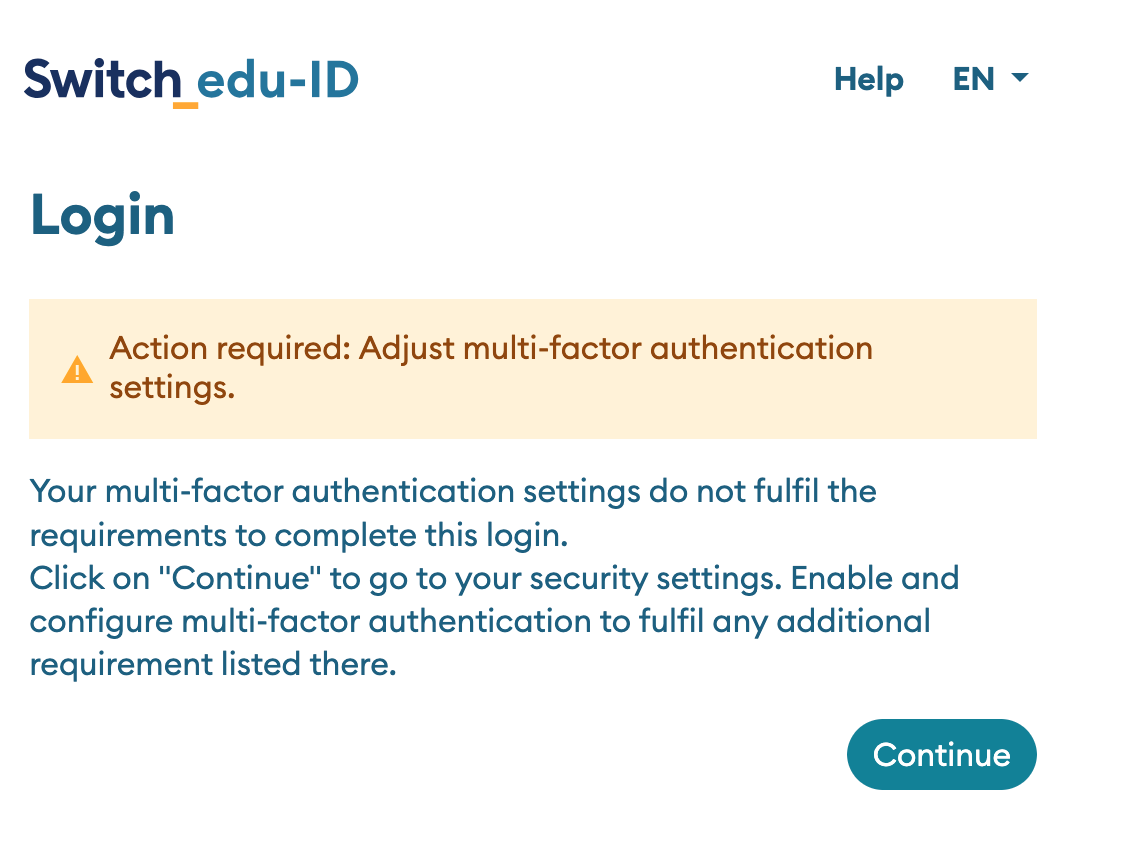
In the case user has not configured multi-factor authentication, but a service requires it, the following happens:
When will a user be required to login with a second factor?
In this case, a service enforces MFA for all users. Users who have not enabled one of the MFA methods are asked to enable an MFA method before accessing the service. Service operators are encouraged to read the chapter about configuring an service below to learn how MFA can be requested done.
Users can on the account management on their own enable MFA and decide to use it to access all services, regardless if the service requires MFA or not.
If the user is affiliated to an organisation that fully adopted edu-ID, the organisation can define authentication policies for their users. Organisations can define to enforce MFA for all services, regardless if the service requires MFA or not. Organisations can also enforce certain methods (i.e. only TOTP but not SMS) and they can define how long the effect of the "Don't ask me again" checkbox lasts.
To request MFA for users, a SAML Service Provider needs to request the SAML2 Authentication Context class https://refeds.org/profile/mfa, which is a standard profile used in academic identity federations around the world. This profile specifies the requirements that the multi-factor authentication mechanism has to meet.
For OIDC Relying Parties, the setup of requiring two-step login is very simple as just the authorization URI has to be adjusted. The configuration therefore is documented in OpenID Connect - Development and Testing.
In case a SAML Identity Provider does not support this profile (i.e. all organisations that have not adopted edu-ID), it will display an error message to the end-user. Users login in via Switch edu-ID will automatically asked to enable an MFA method if they have none enabled yet.
The Shibboleth Service Provider is the most frequently used SAML implementation in our federation and worldwide in academic identity federations. Requesting multi-factor authentication can be achieved via the following options:
A. By edu-ID Resource Registry:
The easiest way to request MFA is to enable the checkbox "REFEDS Multifactor Authentication Login" in the "Intended Audience and Expert Settings" for a service in the edu-ID Resource Registry. This enforces MFA for all users if they log in via the Switch edu-ID service. But be careful: This setting has no effect for users from Identity Providers that have not adopted Switch edu-ID. I.e. all users from non-Swiss Identity Providers and users from non-green organisations on this map. Therefore, this option has to be used very carefully!
Recommendation: use this option if MFA is to be enforced for all users of organisations who have adopted edu-ID, without excluding users of organizations without edu-ID adoption.
B. By service configuration with Shibboleth:
The Shibboleth Service Provider can request MFA to access certain directories or files. This can either be achieved via an Apache config or .htacess directive (more examples here) like the following one that requires the edu-ID user to perform the two-step login/MFA and to be a staff member:
<Directory /var/www/mfa-secured>
  AuthType shibboleth
  ShibRequestSetting requireSession true
  ShibRequestSetting authnContextClassRef https://refeds.org/profile/mfa
  <RequireAll>
    Require shib-attr affiliation staff
    Require authnContextClassRef https://refeds.org/profile/mfa
  </RequireAll>
</Directory>
or for non-Apache web servers within the Shibboleth SP itself via an XML Access Control rule in the RequestMap element like in this example:
<RequestMap applicationId="default">
    <Host name="example.org">
        <Path
          name="mfa-secured"
          authType="shibboleth"
          requireSession="true"
          authnContextClassRef="https://refeds.org/profile/mfa">
            <AccessControl>
                <AND>
                    <Rule require="affiliation">staff</Rule>
                    <Rule require="authnContextClassRef">https://refeds.org/profile/mfa</Rule>
                </AND>
            </AccessControl>
        </Path>
    </Host>
</RequestMap>
In both above cases, the Shibboleth Service Provider will ensure that users can access the protected content only if they successfully could be authenticated with two-step login.
C. By specifically triggering it via URL:
An application can also request MFA when it is required for a specific user. It just needs to send the user to a Shibboleth SessionInitiator (default is /Shibboleth.sso/Login) with the GET request parameter 'authnContextClassRef' and the value 'https://refeds.org/profile/mfa'. In case of an edu-ID user, two-step login would be enforced by sending the user to the following relative URL on a host example.org with a Shibboleth Service Provider installed:
https://example.org/Shibboleth.sso/Login?entityID=https%3A%2F%2Feduid.ch%2Fidp%2Fshibboleth&authnContextClassRef=https%3A%2F%2Frefeds.org%2Fprofile%2Fmfa
Notes:
target' GET parameter to the above URL, a URL can be specified to which the user should return after authentication.https://cms.www.switch.ch/eduid/docs/services/openid-connect/mfa/
SAML Service Providers other than Shibboleth can request two-step login by sending an authentication request that requests the SAML authenticationContextClass https://refeds.org/profile/mfa.
A SAML authentication request then would look like this:
<samlp:AuthnRequest xmlns:samlp="urn:oasis:names:tc:SAML:2.0:protocol"
                    [...]
                    ProtocolBinding="urn:oasis:names:tc:SAML:2.0:bindings:HTTP-POST"
                    Version="2.0">
  <saml:Issuer xmlns:saml="urn:oasis:names:tc:SAML:2.0:assertion">#SP EntityID#</saml:Issuer>
  <samlp:NameIDPolicy AllowCreate="1" />
  <samlp:RequestedAuthnContext>
    <saml:AuthnContextClassRef xmlns:saml="urn:oasis:names:tc:SAML:2.0:assertion">https://refeds.org/profile/mfa</saml:AuthnContextClassRef>
  </samlp:RequestedAuthnContext>
</samlp:AuthnRequest>
To make an OpenID Connect services request MFA, a special paramater has to be added to the authentication request. More details can be found on the MFA Login page for OpenID Connect.
When the user returns to the service authenticated, the application should always check that MFA was performed. For Shibboleth the web server environment variable 'Shib-AuthnContext-Class' should contain the value 'https://refeds.org/profile/mfa'.
An example service that requests MFA (for users who enabled it) is the edu-ID account management site. Also, the edu-ID Attribute Viewer can trigger two-step login by clicking on "Request Login with MFA" after you logged in with username/password only, or by using this enforcing link.
If the (network) location of a user is also considered as a factor, enforcing a three-factor authentication requiring the user to be in a particular network on top of the two-step login can also be achieved with a Shibboleth SP.
Sample access control rule for Apache:
<Directory /opt/www/administrator>
  AuthType shibboleth
  ShibRequestSetting requireSession true
  ShibRequestSetting authnContextClassRef https://refeds.org/profile/mfa

  <RequireAll>
   # Require first factor: username and password
   Require valid-user

   # Require second factor: one-time code
   Require authnContextClassRef https://refeds.org/profile/mfa

   # Require third factor: be within own network
   <RequireAny>
     Require ip 203.0.113.0/24
     Require ip 202::/16
   </RequireAny>

  </RequireAll>
</Directory>
There can be cases where MFA should be enforced only for users of some organisations but not for others. Users from organisations abroad (via eduGAIN) often do not support MFA, in these cases an apache configuration like the following could be used with Shibboleth .
<Location /secure>
  Authtype shibboleth
  ShibRequestSetting requireSession On

  # Require either MFA or non-swiss user
  <RequireAny>

    # Require MFA
    <RequireAll>
      require authnContextClassRef https://refeds.org/profile/mfa
      require valid-user
   </RequireAll>

   # Require users from non-swiss Identity Provider
   <RequireAll>
    <RequireNone>
      Require shib-attr homeOrganization  ~ .*.ch$
    </RequireNone>
    require valid-user
   </RequireAll>

  </RequireAny>
</Location>