
This page is being updated. Switch Drive recently moved from ownCloud to Nextcloud, and we are revising this documentation to reflect the changes. Some information may be outdated or incomplete in the meantime.
Getting Started
Switch Drive is a secure cloud storage service for the Swiss higher-education community. You can:
- keep your files safe in one place,
- open and edit them from any device,
- share them with colleagues, students and project partners.
Who can use it? Members of institutions that subscribe to Switch Drive. See the list of institutions.
What about external partners? People outside these institutions can take part too. A Switch Drive user at a participating institution has to invite them.
- Go to https://cloud-id.switch.ch and sign in with your Switch edu-ID.
- Click the registration link and accept the terms and conditions.
- Open https://drive.switch.ch and sign in.
Details: How to register Switch Drive
You can connect as many devices as you like. They all show the same files.
|
Web |
Sync Client (computer) |
Mobile app |
|
|---|---|---|---|
|
What it is |
Switch Drive in your browser |
A small program that keeps a folder on your computer in sync |
An app for your phone or tablet |
|
Best for |
Quick access, sharing, restoring files, older versions, no copy left on the computer |
Working with your usual programs, offline work, very large files |
Files on the go |
|
Needs installation |
No |
Yes |
Yes |
|
Works offline |
No |
Yes |
Only for files you saved on the device |
- Open https://drive.switch.ch in any current browser.
- Sign in with your edu-ID email address and password.
Forgot your password? Use the "Forgot password?" link on the edu-ID page. - To upload, drag files or folders onto the browser window (on the "Drag and drop files here" place), or click +.
- To create a folder, click + and choose New folder.
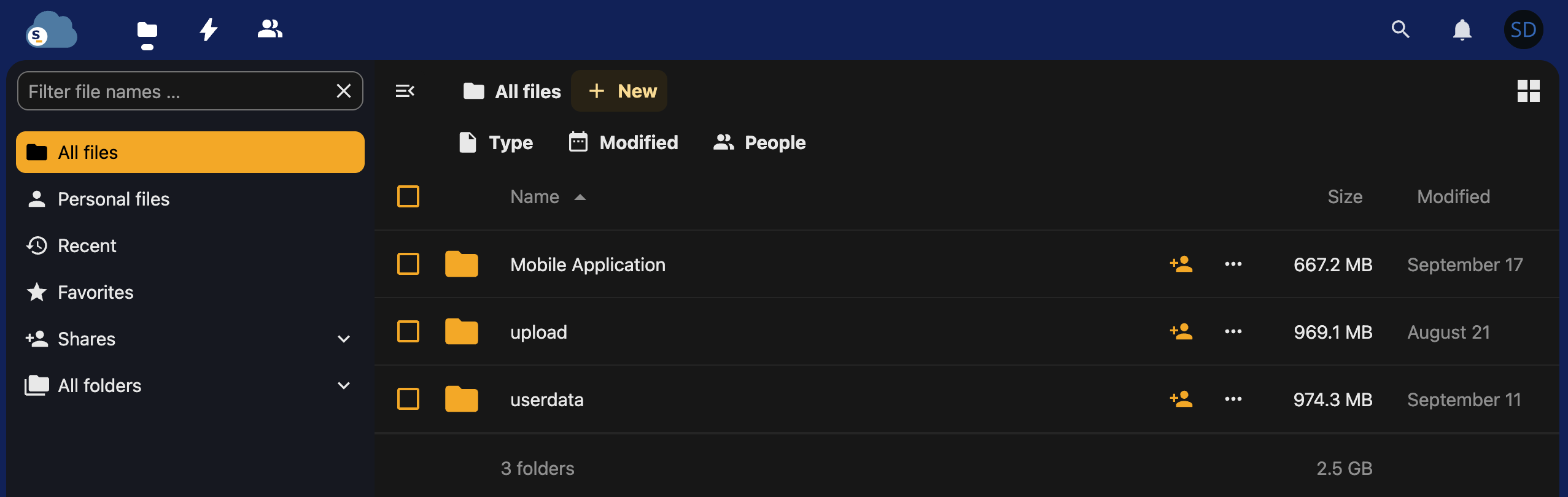
In the browser you can also:
- share, rename and delete files,
- preview many file types (PDF, images, videos),
- edit Word, Excel and PowerPoint files online,
- restore deleted files and older versions,
- see who shared what with you and what happened to your files (Activity),
- create Teams.
On a public or shared computer: log out when you are done, close the browser and clear its cache.
The Sync Client keeps a folder called switchdrive on your computer identical to your Switch Drive account.
- Put a file in the folder and it is uploaded.
- Change or delete a file and the change appears everywhere.
- Someone shares a file with you and it is downloaded automatically.
- No internet? Keep working. Changes sync once you are back online.
Syncing can take a few seconds to a few minutes, depending on how much changed and how fast your connection is.
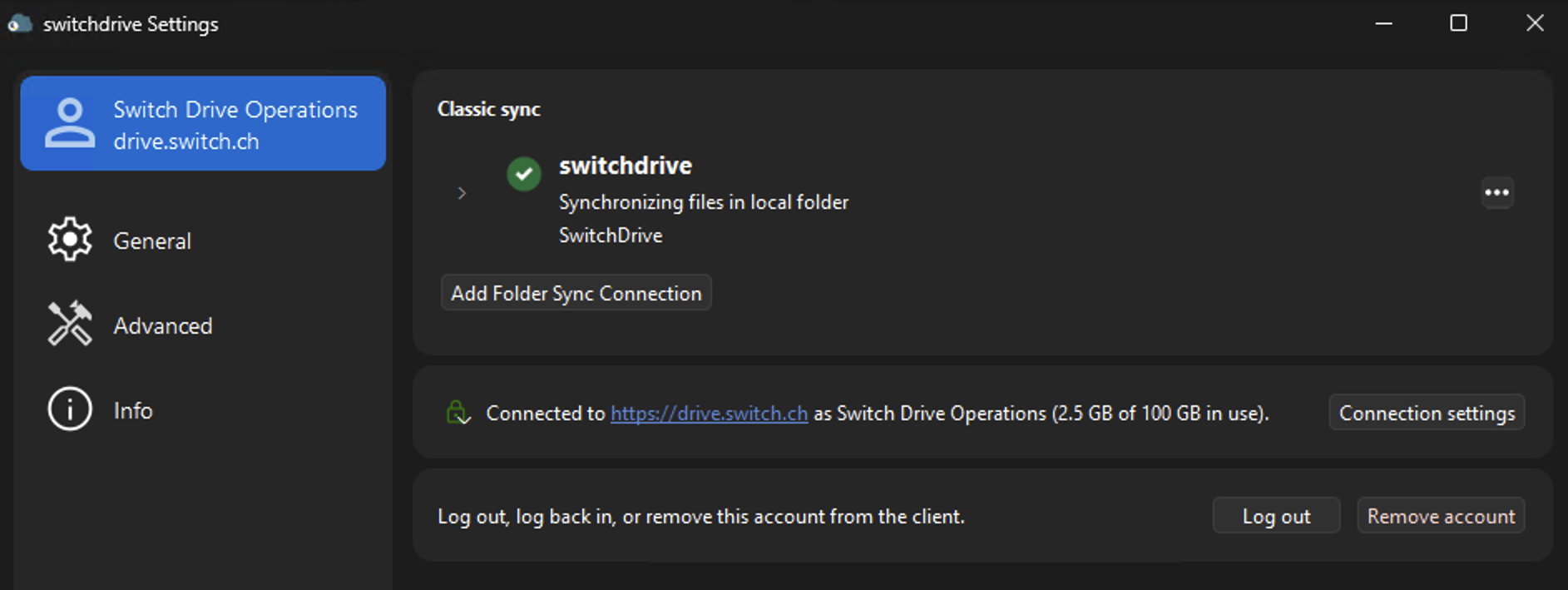
Warning: deleting a file in the switchdrive folder also deletes it on the server and on your other devices. You can restore it from the trash.
The pages are in English. Your browser can translate them for you:
- Open the page in your browser (Chrome, Edge, Safari and Firefox all offer translation).
- Click the Translate option in the address bar or the browser menu.
- Pick your language. You can switch back to English at any time.